So I’ve been dealing with a typically Teams issue, during certain calls Teams would decide that me talking was too similar to static, even on a high-quality microphone. The obvious solution is to disable “Allow applications to take exclusive control of this device” which should stop any applications from controlling the audio level but it appears that Teams ignores this entirely and will continue to adjust it as it feels.

In this article I’ll cover a fairly simple workaround until Teams either fixes what i would consider a bug or gives us the ability to disable the auto-levelling functionality.

Hello? Are you there? I can barely hear you!

In the meantime, if you’re affected by this issue be sure to vote on User Voice to get some Microsoft acknowledgement of this issue – https://microsoftteams.uservoice.com/forums/555103-public/suggestions/38380300-add-an-option-to-disable-auto-adjusting-mic-level

The Solution

This solution is taken from a very helpful comment by Jeff on the User Voice forum.

  1. Download the latest Windows VB-CABLE driver from the link below. This will be used to route the input audio to a virtual device which will be used by Teams, this will stop it being able to auto-level the input.
  2. Extract the downloaded zip file and run the VBCABLE_Setup.exe or VBCABLE_Setup_x64.exe depending on your OS.
  3. Run through the install with any default values and then restart your machine.
  4. Navigate to Sound settings and then the Sound Control Panel.
  5. In the Playback tab, set your normal speakers as the default device.
  6. In the Recording tab set your normal mic as the default device.
  7. Go into properties for your microphone.
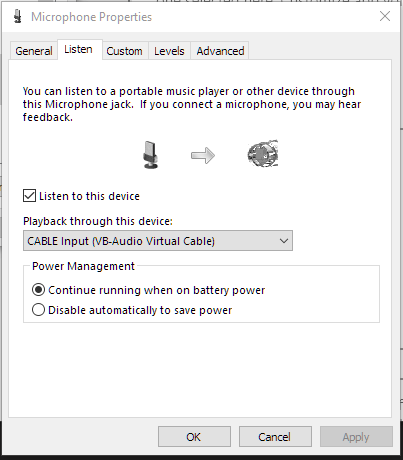
  8. In the Listen tab, check “Listen to this device” and then change the Playback dropdown to “CABLE Input” as shown in the image below –
  1. In Teams, change the Microphone device to “CABLE Output”.

Now Teams should be unable to modify your audio levels at all and this should affect any other programs.


Try Cartel Empire today. A completely free, persistent-MMO developed by me.

29 responses to “Microsoft Teams – Fix Auto-Adjusting Microphone Audio”

  1.  Avatar
    Anonymous

    This is because Microsoft is actually begging everyone to use other’s products.
    I will never understand how a proprietary program running on the proprietary OS made by the same company is not able to achieve the basic functionality it was designed for. If you take into account that the original Skype had much more features and it was made by a team of 5 people in less than a week… And after a few years Microsoft bought the company and proved a new concept: it IS possible to make a worse product version by version and when someone thinks the quality hit the abyss, a new wonder happens. Yes, it sinks more.

    Like

  2.  Avatar
    Anonymous

    Just great, it works for me , many thanks!

    Like

  3.  Avatar
    Anonymous

    Still doesnt work properly. Fk microsoft, man!

    Have been in the IT industry for going on 30 years… they just continue to progressively get worse as they try to be the ‘end-all be-all’ and do everything under the goddamn sun.

    Stick to what you know and what you’re good at. Fkoff trying to do every goddamn thing… 

    Like

    1.  Avatar
      Anonymous

      Found this extension which works in MS Teams on Edge and Chrome: https://chrome.google.com/webstore/detail/disable-autogain-gmeet/clpapnmmlmecieknddelobgikompchkk

      Like

  4. Glenn Avatar
    Glenn

    Anyone seen any solutions to this problem for MAC OS? What an annoying problem 😦

    Like

  5. Steve Mills Avatar
    Steve Mills

    I installed VB Cable on 14-Nov-20 and it worked really well to resolve this problem. However, today 08-Jan-21 it is no longer working in that Teams sees no audio coming from VB Cable. So, I guess I’m back out there looking for a solution to this problem again. 😦

    Like

  6. Niko Avatar
    Niko

    I have configured the drivers but now all windows notification sounds are heard on the caller side or is it only in my case?

    Like

  7.  Avatar
    Anonymous

    VB Cable did not work for me either.
    Followed Jock’s lead and disabled access all Microsoft Store Apps access to the Microphone in the Microphone Privacy Settings (except for the Voice Recorder).
    That did the trick for me.

    Like

    1.  Avatar
      Anonymous

      i mean it work for me

      Like

  8.  Avatar
    Anonymous

    This works, highly recommend

    Like

  9. Lykanthrop Avatar
    Lykanthrop

    Now I get message how Teams can’t hear me and it auto adjusts volume to 0.
    Without virtual audio cable it would adjust volume to 100 but now it adjusts it to 0.
    I am forced to use this garbage bloatware for a job interview!

    Like

    1. shaun.wilkinson Avatar

      Hi Lykan, try disabling the Xbox game bar as suggested in some of the other comments if you’ve not already

      Like

      1.  Avatar
        Anonymous

        dunno if that does anything

        Like

  10. […] Microsoft Teams – Fix Auto-Adjusting Microphone AudioSo I’ve been dealing with a typically Teams… Microsoft Teams – Fix Auto-Adjusting Microphone AudioSo I’ve been dealing with a typically Teams… […]

    Like

  11. Jock Avatar
    Jock

    Great tip, I found another solution however – just going into settings and turning off the Xbox Game Bar did the trick. It seems the Xbox Game overlay competes with Teams for tuning the MIC so its really an issue of the Xbox Game Bar it seems, not teams in and of itself!

    Like

  12. drew (@kdawsonRE) Avatar

    I had this problem. I found my fix was to close the xbox game app. Lots of sound / mic issues with games and on a hunch closed that and boom! Stopped auto adjusting in teams…

    Liked by 1 person

    1. Jock Avatar
      Jock

      solved it for me! great tip!

      Like

    2. Jaroslaw Avatar
      Jaroslaw

      Hi,
      I had the issue with Teams oversteering mic to 100 and besides turning off the XBox game bar I turned off the access for this app to the mic. Settings –> Microphone privacy options –> Choose which MS Store apps can access your microphone

      Worked for me.

      Like

  13.  Avatar
    Anonymous

    It works for me, thank you very much.

    Out of a sudden, i though my microphone was broken.
    …..

    This crappy teams is giving so many bugs,
    feels like cursing it.

    Like

  14. Eamonn Avatar
    Eamonn

    You’re a lifesaver, it worked. The way it works is that it listens to your mic through another driver? It assumes its another device or something. Cool work around, the fact that it works haha

    Like

  15.  Avatar
    Anonymous

    This vblog is important. Only in years you will know.

    Like

  16.  Avatar
    Anonymous

    I le Shaun. Because he always helps.

    Like

  17. Rodger Avatar
    Rodger

    This fix did not actually work for me. MS Teams found a way to change the level of the virtual cable. It did work for a short period, but a windows update appears to have given Teams back the power.

    Like

    1. shaun.wilkinson Avatar

      I’m sorry to hear that Rodger, all I can suggest is to double-check all of the settings as the fix still appears to work for me.

      Like

    2. Patrick Avatar
      Patrick

      I’m having the same issue. Using Virtual Audio cable as recommended in another guide, which seems pretty similar to the virtual cable recommended here, the level of the virtual cable is getting mucked about with my teams whether or not I allow exclusive control. If I could choose simply not to use Teams any more, that’s what I’d do. It’s infuriating that Teams doesn’t have a way to switch off the auto-gain control that it is f*cking around with in the background.

      Liked by 1 person

      1.  Avatar
        Anonymous

        100%. Another example of microsoft diluting themselves and trying to do too fkng much. stick with what you’re good at fkoff with everything else. Zoom being the standard was perfect. Along comes teams and we have more issues to deal with…

        Like

  18. franklinmint Avatar

    this information very helpful to me because its clear my all problem about microphone . i,m inspired form your info . thanks dude 😉

    Like

    1. shaun.wilkinson Avatar

      No problem at all, took my a while to figure out the issue so always happy to help

      Like

Leave a reply to shaun.wilkinson Cancel reply

This site uses Akismet to reduce spam. Learn how your comment data is processed.

Design a site like this with WordPress.com
Get started
