So I’ve been dealing with a typically Teams issue, during certain calls Teams would decide that me talking was too similar to static, even on a high-quality microphone. The obvious solution is to disable “Allow applications to take exclusive control of this device” which should stop any applications from controlling the audio level but it appears that Teams ignores this entirely and will continue to adjust it as it feels.
In this article I’ll cover a fairly simple workaround until Teams either fixes what i would consider a bug or gives us the ability to disable the auto-levelling functionality.

In the meantime, if you’re affected by this issue be sure to vote on User Voice to get some Microsoft acknowledgement of this issue – https://microsoftteams.uservoice.com/forums/555103-public/suggestions/38380300-add-an-option-to-disable-auto-adjusting-mic-level
The Solution
This solution is taken from a very helpful comment by Jeff on the User Voice forum.
- Download the latest Windows VB-CABLE driver from the link below. This will be used to route the input audio to a virtual device which will be used by Teams, this will stop it being able to auto-level the input.
- Extract the downloaded zip file and run the VBCABLE_Setup.exe or VBCABLE_Setup_x64.exe depending on your OS.
- Run through the install with any default values and then restart your machine.
- Navigate to Sound settings and then the Sound Control Panel.
- In the Playback tab, set your normal speakers as the default device.
- In the Recording tab set your normal mic as the default device.
- Go into properties for your microphone.
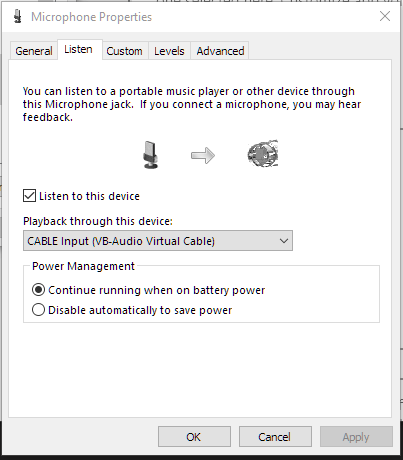
- In the Listen tab, check “Listen to this device” and then change the Playback dropdown to “CABLE Input” as shown in the image below –
- In Teams, change the Microphone device to “CABLE Output”.
Now Teams should be unable to modify your audio levels at all and this should affect any other programs.




 Sysadmin Central
Leave a reply to drew (@kdawsonRE) Cancel reply