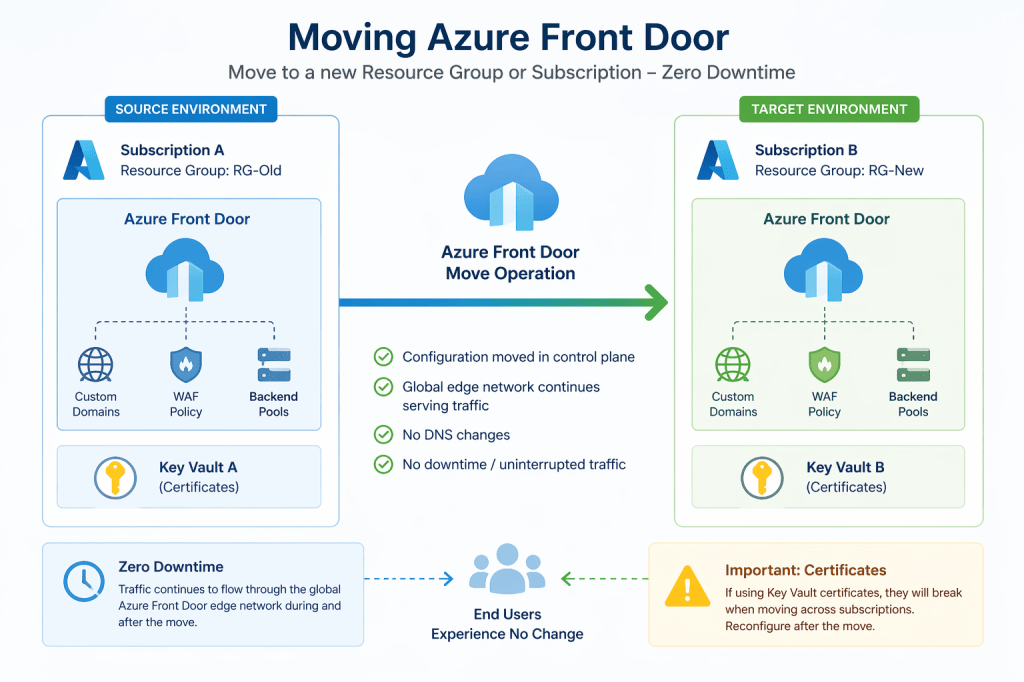
Moving an Azure Front Door instance between resource groups or subscriptions can initially feel risky. It is a globally distributed edge service, actively serving production traffic, and commonly integrated with DNS, backend routing, and TLS certificates.
Despite that, the move operation itself is far less disruptive than most engineers expect.
If performed correctly, traffic continues to flow without interruption. However, there is one important area that requires careful planning: customer-managed certificates in Azure Key Vault.
Zero-Downtime Azure Front Door Migration Approach (High-Level)
At a high level, you can achieve a zero-downtime migration by:
- Adding a new enabled origin pointing to the new backend resources and disabling the old origin
- Allowing traffic to gradually shift to the new origin
- Moving the Azure Front Door resource after backend validation is complete
This approach ensures traffic is already being served by the new backend before the Front Door migration occurs.
In most cases, the actual Front Door move can then be completed with no visible user impact.
Key Takeaways
Before going into the step-by-step process, here are the most important points:
- The Azure Front Door move operation is non-disruptive
- Live traffic continues to be served during the move
- No DNS changes are required
- Customer-managed certificates stored in Azure Key Vault may break when moving across subscriptions
- Certificate issues do not immediately impact frontend availability, but must be fixed promptly to avoid future TLS failures
- It is strongly recommended to deploy a new Key Vault before migration to minimise recovery time
Step-by-Step Migration Process
1. Validate Move Support
Before initiating any changes, confirm that the Front Door instance supports being moved.
The simplest method is to use the built-in Azure Move operation in the portal. This performs a validation check and confirms whether the resource can be moved to the target subscription or resource group.
2. Identify and Handle Dependencies
Azure Front Door itself is straightforward to move. The complexity usually comes from dependencies.
Typical dependencies include:
- Backend services (App Services, APIs, Storage Accounts)
- Web Application Firewall (WAF) policies
- Custom domains and DNS mappings
- Azure Key Vault certificates (critical area)
For a zero-downtime migration, it is recommended to:
- Pre-deploy copies of required backend resources in the target subscription where applicable
- Configure new origins in Azure Front Door pointing to the new backend environment
- Shift traffic gradually before moving the Front Door resource itself
This reduces reliance on cross-subscription dependencies during the move.
3. Initiate the Move
You can move Azure Front Door using:
- Azure Portal
- Azure CLI
- PowerShell
In the Azure Portal:
- Navigate to your Front Door profile
- Select Move
- Choose the target resource group or subscription
- Validate the configuration
4. What Happens During the Move?
This is where most concerns typically arise.
In practice:
- The Front Door configuration is updated in the control plane
- The global edge network continues serving cached and routed traffic
- No DNS changes occur
- No frontend endpoints are dropped
From a user perspective, there is no visible interruption or downtime.
Important Consideration – Azure Key Vault Certificates
If you are using customer-managed TLS certificates stored in Azure Key Vault, this is the main migration risk area.
What Changes During a Cross-Subscription Move?
When moving Azure Front Door across subscriptions:
- Front Door loses direct access to the original Key Vault
- Certificate references become invalid at the configuration level
- The TLS configuration enters a degraded state internally
However:
- Existing TLS sessions continue to function
- Cached edge configuration continues to serve traffic
- End users typically do not experience immediate disruption
This effectively creates a temporary grace period, not a permanent fix.
Fixing Certificates After Migration
To restore full certificate management, you must re-establish the Key Vault integration.
Step 1 – Deploy a New Key Vault
Create a new Key Vault in the target subscription if it doesn’t already exist.
Ensure:
- Front Door identity has Get and List permissions for secrets and certificates
- Access policies or RBAC permissions are correctly configured
- Network restrictions (if used) allow Front Door access
Step 2 – Upload Certificates
- Import your existing certificates
- Ensure private keys are included
Step 3 – Configure Front Door Certificate Secrets
Within Azure Front Door:
- Navigate to Certificates / Secrets
- Add a new certificate reference from the new Key Vault
- Confirm the secret version is correctly selected
Then:
- Validate HTTPS bindings are active and healthy
- Go to Custom Domains
- Update TLS configuration to reference the new certificate secret
Final Thoughts
Migrating Azure Front Door between resource groups or subscriptions is a controlled and generally low-risk operation when properly planned.
The platform ensures continuous traffic delivery throughout the move, which removes most of the traditional migration concerns.
The real complexity lies not in Front Door itself, but in external dependencies, particularly Key Vault-based certificate management.
If you account for this early, ideally by provisioning a new Key Vault before migration, the entire process becomes a predictable and zero-downtime operation.





Leave a comment