You know that feeling when you find out a critical Azure service you’re using is being retired next week, and nobody told you? Yeah, let’s not do that again.
Although I’m a big fan of PowerShell and scripting in general, it can be time consuming to write scripts to identify resources based on the copious quantity of service retirements that Microsoft currently seem to be going through.
What if I told you Microsoft have us covered though? Look no further than the Azure Services Retirement Workbook, a small but mighty tool that every cloud admin and architect should be familiar with.

What is it?
The Services Retirement Workbook is a Power BI-based tool provided by Microsoft that helps you track services and SKUs approaching retirement across all of your Subscriptions.
It plugs into your Azure environment and flags what’s on the chopping block. Think of it as your friendly but brutally honest friend going, “Hey, you might wanna deal with this now before it breaks in production.”
Why it matters
Azure evolves fast. Services get better, SKUs change, and legacy features get deprecated. Despite Microsoft tending to give a lot of retirement notice, if you’re not paying attention (and it can take a lot of your attention on occasion), you can still be caught out quite easily.
The workbook helps you stay proactive, not reactive. It gives you visibility before Microsoft pulls the plug on something your apps may rely on.
How to use it
Getting started is easy
- Open the Azure Services Retirement Workbook from the Azure Portal under Workbooks in Advisor or via the short link above.
- Filter by subscription, resource group or location if required.
- Review the Retiring Azure services summary to identify what needs attention.
- Sleep better at night.
You may click any of the Learn more links in the Actions column which will also take you directly to the relevant Azure Updates page, which often contains a full description of the service being retired, when it’s being retired and any available recommended actions and help and support on offer.
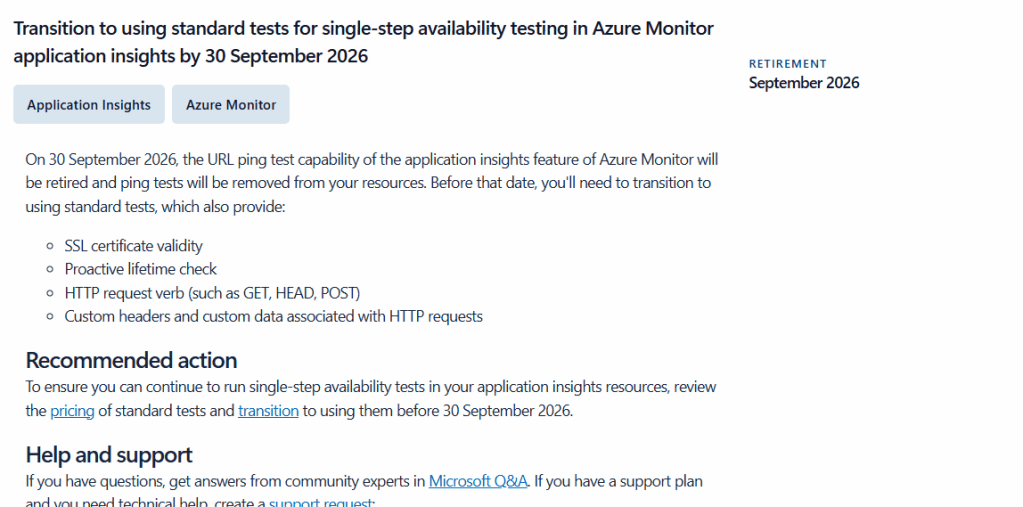
The official Microsoft Learn documentation regarding the Azure Services Retirement Workbook may be found here – Service Retirement workbook | Microsoft Learn
Hopefully this goes some way to making it quicker and easier to manage service retirements, if it’s helped I’d love if you could comment below and/or share the post!





 Sysadmin Central
Leave a comment