
I’ve written quite a few articles on how to save costs on the more expensive resource types that are commonly in use and although I’ve touched on it in each of those articles, I’ve not specifically covered how to best use the powerful Cost Management tools available at your disposal within Azure.
This post will walk you through Cost Analysis and how to properly analyse the costs across your entire environment, how to set up and monitor Alerts to reduce the manual effort you need to go to each week/month/quarter and how to configure Budgets to ensure you stay ontop of your costs.
Cost Analysis

The Cost Analysis page is your go-to tool for getting a detailed breakdown of where your cloud budget is going. It provides insights into how much you’re spending across different services, subscriptions, and resource groups and pretty much any other possible metric available.
Key Features
- Filters and Grouping – Use filters to narrow down by specific subscriptions, resource groups, services, tags and many other metrics. This allows you to identify which areas of your environment are consuming the most resources.
- Time Frames – Adjust the time frame to view cost trends over days, months, or custom periods. This helps identify spikes in usage or consistent trends in overspending.
- Usage Patterns – Visualize spending over time with charts to spot anomalies or forecast future costs based on historical data.
Pro Tip
Set up custom views and save them for regular analysis. For example, you can create a view that groups resources by tag, such as department or environment (production, dev), to track spending more granularly.
Also, if you spot a potentially interesting metric, you can click any of the categories shown within the charts to focus on that specific categorisation, which can allow you to view it through the lense of different Groupings to get a much better understanding of your costs.
Cost Alerts
Cost Alerts are an automated way of tracking Cost Anomalies and Reservation Utilizaation.
Cost Anomaly Alerting
Unexpected cost spikes can occur due to increased resource consumption, unexpected deployments, or configuration errors. To help address this, Microsoft introduced Cost Anomaly Alerts, which are part of its Cost Management suite. These alerts automatically detect abnormal spending patterns and notify you, so you can take corrective action before costs spiral out of control.

How to Set Up Cost Anomaly Alerts
- Navigate to Cost Alerts, then select Add.
- Select Anomaly as the Alert type and give the alert a Subject of your choice and select which Recipients should receive the alert.
- Set other values if required then click Create.
- You’ll now receive Cost Anomaly reports automatically.
Reservation Utilization Alerting
For those that are using Reservations (and you should be), there is another type of automated alerting that can be configured called “Reservation utilization”. The big benefit that this form of alert brings is that it removes the burden on you and your IT team to actively monitor purchased reservations.

How to Set Up Reservation Utilisation Alerts
- Navigate to Cost Alerts, then select Add.
- Select Reservation utilization as the Alert type.
- Select the types of Services and Reservations to include.
- Set a target utilisation rate.
- Set other values if required then click Create.
- You’ll now receive Reservation Utilization reports automatically.
Budgets
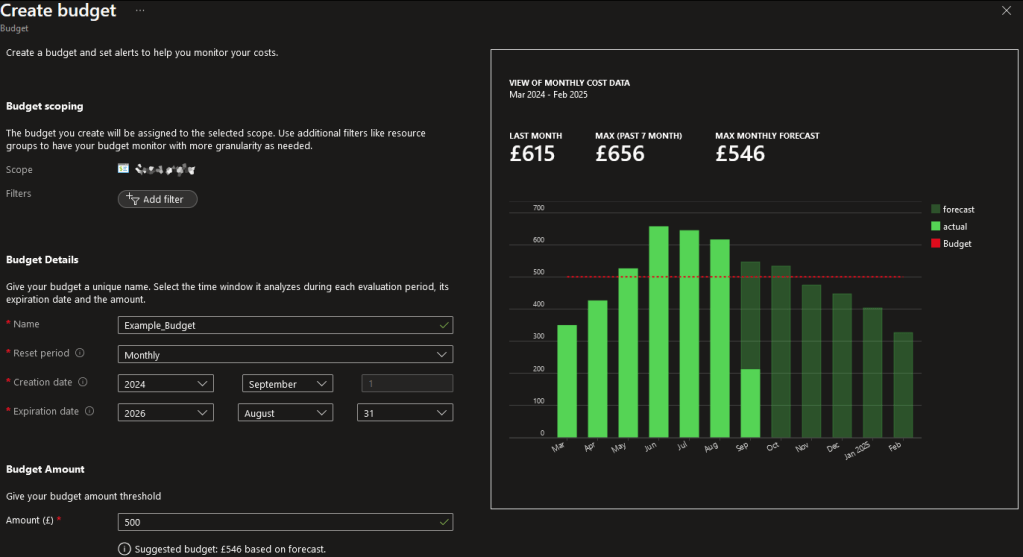
The Budgets feature allows you to define spending limits for specific periods (monthly, quarterly, annually) and track how your actual spending compares to those limits. Budgets are great for notifying you of forecasted or actual budgetary issues, but it’s important to note that they do not enforce budgets, they are merely a reporting/alerting tool.
How to Use Budgets
- Create Budgets: Set budgets at various levels—subscription, resource group, service type or various other scopes. This helps you segment costs and prevent any one department or service from overspending.
- Real-Time Tracking: Budgets provide real-time tracking of how much of your allocated funds have been used, letting you adjust spending behavior accordingly.
Trick: Use budgets to not only control cloud spend but also incentivize cost-saving behavior across teams. By setting strict budgets for each team and sending regular reports, you can foster a culture of financial accountability. Also teach and give your users the ability to set up their own Budgets and incentivise them to periodically review costs attributed to them.
Best Practices for Cost Management
- Review Regularly: Make it a habit to review your cost analysis dashboards at least weekly. This ensures that you catch any unusual spending before it becomes a significant issue.
- Use Tags Effectively: Apply tags to your resources for better tracking by department, environment, or project. This is especially useful in larger organizations with multiple teams sharing Azure resources.
- Set Up Alerts for High-Cost Services: Services like virtual machines and databases tend to accumulate costs rapidly. Set up dedicated alerts and monitor these services closely.
- Optimize with Azure Advisor: Azure Advisor can offer cost-saving recommendations based on your resource usage. Regularly reviewing its suggestions can help you optimize resources and avoid unnecessary costs.
Final Thoughts
Effectively managing your Azure costs doesn’t have to be complex, but it does require consistent attention.
Using Azure’s built-in tools such as Cost Analysis, Cost Alerts, and Budgets ensures you can stay informed, take preemptive actions, and avoid budget overruns whilst reducing the manual effort you have to go to.
By setting up alerts, creating budgets, and continuously analyzing costs, you can ensure that your cloud spend is optimized and aligned with your financial goals.




 Sysadmin Central
Leave a comment