
Microsoft Sentinel can be a source of rather high running costs when you start to injest enough data for it to become a holistic view of your organisations security.
Microsoft have been working away on a new method to optimise your Sentinel spend in the form of the new SOC Optimization view, which released in public preview in May. It is designed to recommend how you can improve your security coverage, and whether tables are seeing low or no actual usage, which can be used to inform decisions around optimising and/or removing data sources which you may not be using.
This post is part of my Azure Cost-Saving Series. For more tips on reducing your Azure costs, check out the full series here: Sysadmin Central – Cost Saving Series.
- Understanding the SOC Optimization View
- Accessing SOC Optimization
- Identifying Cost-Saving Opportunities
- Conclusion
Understanding the SOC Optimization View

The image above shows an example of the SOZ Optimization dashboard, showing a small range of potential security improvements in the form of Coverage optimizations and where costs can be saved due to Low usage of table data. Selecting “View full details” on any of the suggestion cards opens a pane which provides further detail along with the recommended action such as a list of hunting rules to add, or whether to archive or set a table to Basic ingestion.
Accessing SOC Optimization
Step 1: Log in to the Azure Portal
Sign in to the Azure Portal using your credentials.
Step 2: Navigate to Microsoft Sentinel
Navigate to “All Services” and search for “Microsoft Sentinel.” Select your Sentinel workspace from the list.
Step 3: Open the SOC Optimization View
Within your Sentinel workspace, navigate to the “SOC Optimization” view under the “Threat Management” section.
Identifying Cost-Saving Opportunities
The SOC Optimization view highlights several areas where you can optimize your resource usage:
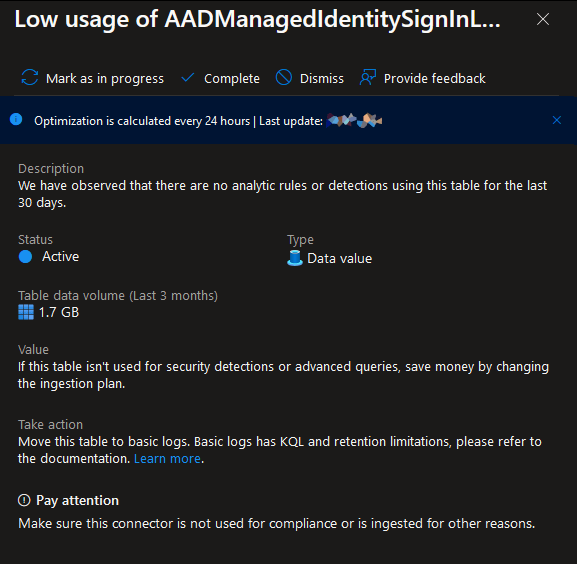
Data value optimizations: You will likely see several cards with a title similar to “Low usage of * table”, these cards will show a simple overview of how much data a table has injested within the past 3 months and will recommend that you remove, archive, or change the storage tier. Which can lead to significant cost savings.
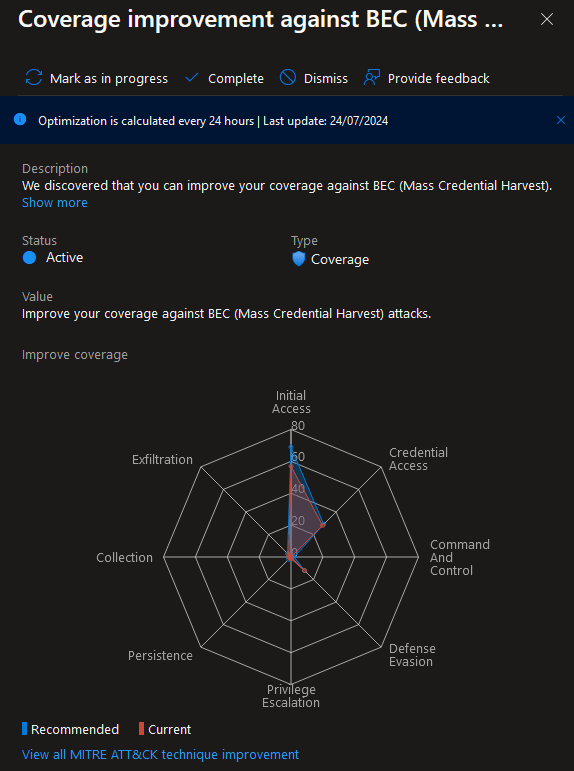
Threat-based optimizations: As mentioned, SOC Optimization is not just about cost saving however, it will also show you where you could be improving your coverage such as in the example shown below which is suggesting that there are some Analytics rules and Dana connectors which could be added.
Conclusion
The SOC Optimization view is a valuable tool for improving the efficiency and cost-effectiveness of your security operations. By regularly reviewing this view and taking action on its insights, you can ensure that your SOC remains as effective as possible and financially sustainable.




 Sysadmin Central
Leave a comment