
In a somewhat bizarre change, Microsoft have taken the decision to auto-minify all of the navigations menu’s found across the portal. Causing many additional clicks to get to the same areas and if you’re anything like me, confusing your muscle memory.
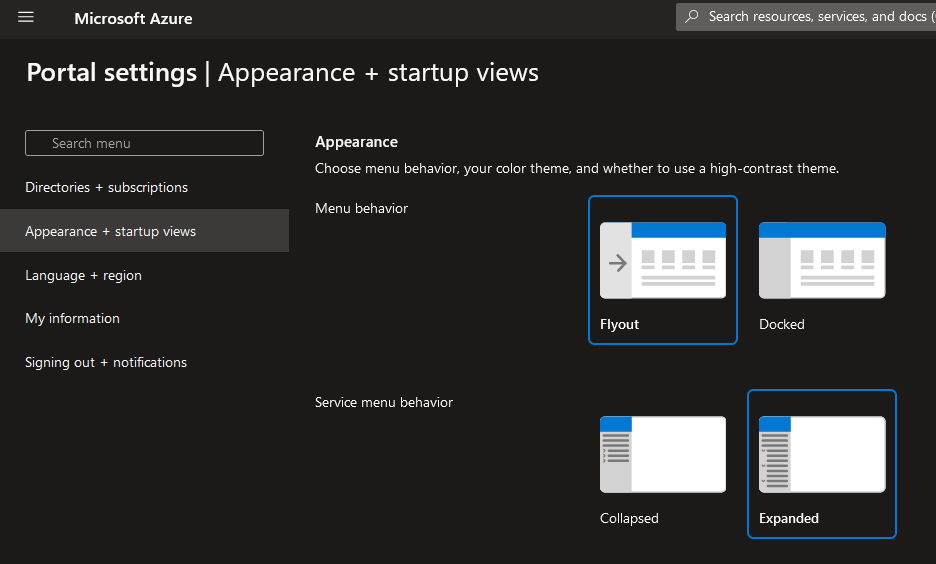
Luckily this is a very simple change to roll back thanks to a new setting found in Appearance + startup views.
The Fix
- Navigate to the Azure Portal.
- Click the Cog icon at the top right.
- Navigate to the Appearance + startup views menu.
- Under Service menu behaviour, set the option to Expanded rather than the default Collapsed.
- Click Apply.




 Sysadmin Central
Leave a comment