
As businesses scale their operations in the Azure ecosystem, ensuring Resource Groups are appropriately tagged becomes a strategic imperative. Yet, merely tagging resources once isn’t enough; regular audits are necessary to maintain alignment with your policies and processes.
Moreover, streamlining this process through automation can significantly enhance operational agility and resource optimization.
Rather than inventing an entirely new tool, why not use the established tools that almost every business already has to hand and which most staff are familiar with?
In this brief article, I’ll cover how to export a list of all Resource Groups and their currently assigned Tags to an Excel CSV file where you can then easily and quickly review it collaboratively with your various resource owners, before using a short PowerShell script to enact any changes across your Azure environment.
Exporting a Tags Report
Although it would be fairly straightforward to export this information using a script (and I’d be happy to demonstrate this if there’s any interest), I’ll utilise the Azure Portal interface to keep things simple.
- Navigate to the Azure Portal.
- Search or navigate to the Resource Groups view.
- Select the Manage view button in the command bar and then select Edit columns.
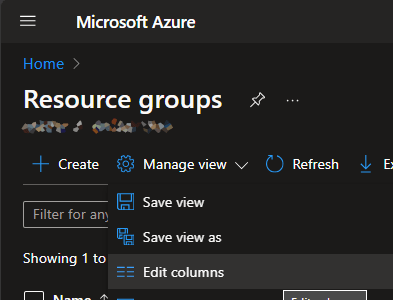
- Select Add Column and add any Tags you wish to audit/update in the pane that appears.
- Once you’re happy with the view, select the Export to CSV button in the command bar.
- If you have any unrequired columns in the CSV, be sure to remove them at this point, also remove the “(TAG)” text from each heading.
The Script
Once you’ve had time to go through the CSV and make any changes you want, we can run the script below to update the related records in Azure.
Be sure to update the $pathToCSV variable with the path to your CSV and add additional if statements from lines 23 onwards to ensure that any Tags you have are included. This could be replaced with a loop where you disregard any columns such as Name, Subscription etc and process them as required.
Connect-AzAccount

$pathToCSV = "c:\something\example.csv"
$csv = Import-CSV -path $pathToCSV

#Order by Subscription to speed up operation
foreach ($record in $csv | Sort-Object SUBSCRIPTION) {
    # Get the current Azure context, if it differs from the record then switch Subscription
    $currentSub = Get-AzContext
    if($currentSub.Subscription.Name -ne $record.SUBSCRIPTION) {
        Get-AzSubscription -SubscriptionName $record.SUBSCRIPTION -WarningAction SilentlyContinue | Set-AZContext -WarningAction SilentlyContinue
    }

    # Get the Resource Group
    try {
        $ResourceGroup = Get-AzResourceGroup -Name $record.NAME -ErrorAction stop
    } catch {
        Write-Warning "Failed on get RG - $($record.NAME)"
        continue
    }

    ## Create the Tag set, currently it only sets a Tag if it is not empty
    $tagSet = @{}
    if($record.OWNER -ne "") {
        $tagSet += @{"Owner"=$record.OWNER}
    }
    if($record.CREATOR -ne "") {
        $tagSet += @{"Creator"=$record.CREATOR}
    }
    if($record.CREATEDATE -ne "") {
        $tagSet += @{"CreateDate"=$record.CREATEDATE}
    }
    if($record.ENVIRONMENT -ne "") {
        $tagSet += @{"Environment"=$record.ENVIRONMENT}
    }
    if($record.CRITICALITY -ne "") {
        $tagSet += @{"Criticality"=$record.CRITICALITY}
    }
    if($record.FUNCTION -ne "") {
        $tagSet += @{"Function"=$record.FUNCTION}
    }

    # Update the Tags on the Resource Group, merging with the existing set
    try {
        Update-AzTag -ResourceId $ResourceGroup.ResourceId -Tag $tagSet -Operation Merge
    } catch {
        Write-Warning "Failed on Merge - $($ResourceGroup.ResourceGroupName)"
        continue
    }

    Write-Host -ForegroundColor green "Set tags on $($ResourceGroup.ResourceGroupName)"
}

Disconnect-AzAccount





 Sysadmin Central
Leave a comment