
There are quite a few ways to calculate tax and VAT in Dynamics and it’s likely arguable which way is the best, however, personally I believe the proper way to do it is to calculate it at the individual line items level which then properly rolls up to the opportunity or quote record.
This seems like the cleanest way to do it, doesn’t effect the existing Dynamics functionality and is easy to set up across the entire instance, making it very easy to update in future.
The Solution
We’ll add a Business Rule to the Opportunity Products and Quote Products records which will add a flat tax rate to those records. The obvious caveat to this is that it assumes you do have a flat VAT/tax rate and so if this isn’t the case you will need to add further qualifiers to the business rule or find another way to do this.
- Navigate to Power Apps by going to https://make.powerapps.com/.
- Navigate to Solutions and then the Default Solution (Best practice is often to create a new custom solution then import and configure what you need but that’s too much for this article to cover).
- Locate the Opportunity Product table.
- Navigate to the Business Rules tab.
- Click “Add Business Rule”.
- Give the new rule a descriptive name, I would suggest “Calculate tax” or similar.
- Select the existing Condition and then in the Properties tab on the right set the following –
- Display Name – If Extended Amount contains data
- Rule 1 –
- Source – Entity
- Field – Extended Amount
- Operator – Contains data
- Finally click OK to confirm the condition.

- Now click the Add button and add a “Set Field Value” action then click the small + symbol to the right of the existing condition.
- Set the new action up as in the image below, changing the 0.2 to your required Tax rate, 0.2 is effectively 20% VAT as an example.
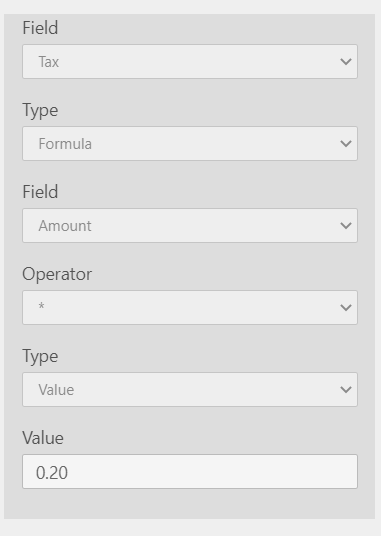
Finally ensure that you Save then Activate the Business Rule. When you next modify or add Opportunity Products you should see it calculating tax automatically for you. Do the same steps again for Quote Products and so on as required.




 Sysadmin Central
Leave a comment